An agent isn’t always just one agent — behind the scenes it can be a whole system: a main agent delegating parts of the job to sub-agents, running as one logical process. The important part: this happens automatically. Dataleap decides when a workflow benefits from sub-agents and architects them for you. There’s nothing to set up, nothing to manage — this page just explains the concept so you recognize it when you see it.

What a sub-agent system looks like

Diagram: a main agent delegating to three sub-agents — research, copywriting, and a scraper called fifty timesDiagram: a main agent delegating to three sub-agents — research, copywriting, and a scraper called fifty times

One logical process, many agents underneath.
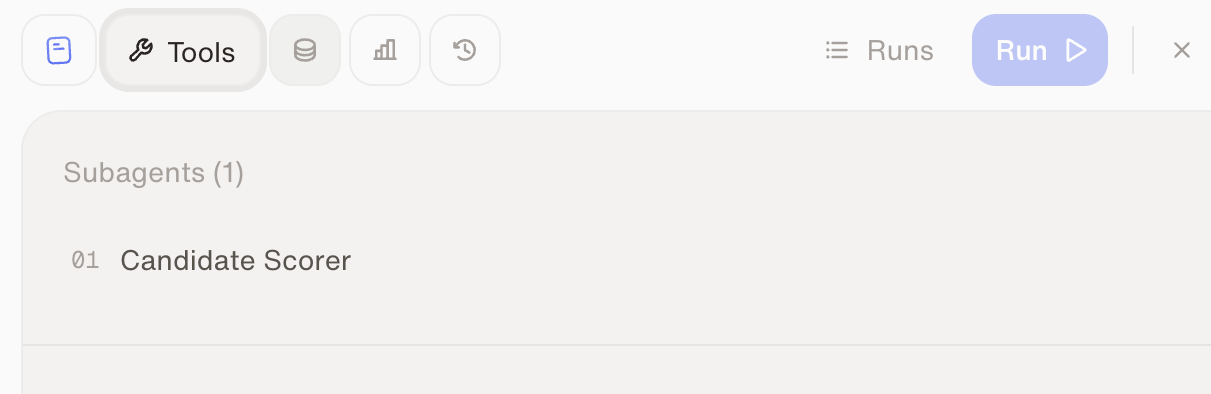
The main agent breaks the goal apart, delegates to sub-agents, and merges the results. Dataleap typically reaches for this when a workflow involves batch processing (the same task run many times), heavy intermediate data (a sub-agent digs through it and returns just a summary, so the main agent stays lean), or distinct phases that each need their own focused instructions. If your agent uses sub-agents, they appear under its Tools — you can look at each one, and that’s all you ever need to do with them:
The Tools tab of an agent showing one sub-agent, the Candidate Scorer

Sub-agents live in the agent's Tools tab.

A sub-agent belongs to its parent agent; for logic that several agents should share, that’s what skills are for.

Model tiers

What you can adjust: the preset — separately for the main workflow agent and for each sub-agent. Higher tiers are more capable and more expensive.
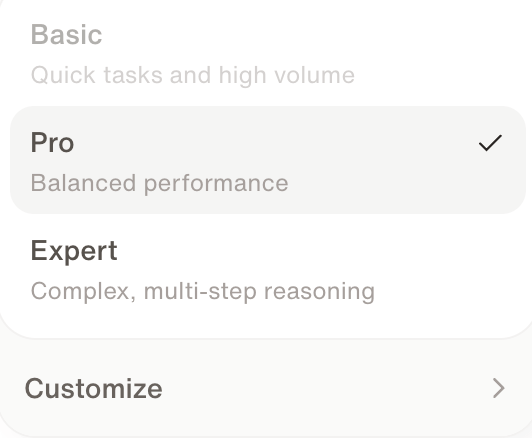
The model selector in the chat bar showing Basic, Pro, Expert, and Customize

The model selector — Expert, Pro, or Basic. Customize picks a specific model.

1

Build on Pro or Expert

While the agent takes shape, use Pro or Expert — building benefits from stronger judgment. New agents start their setup conversation on Pro. Move up to Expert when the workflow is complex. Setup conversations can’t use the Basic preset.
2

Run on Basic by default

Execution agents default to Basic, the fastest and most cost-efficient preset. Start there and move up only when your runs give you a reason to.
3

Adjust by evidence

Two paths, depending on what you observe:
  • The agent runs perfectly fine? Keep it on Basic — that’s the cheapest way to run it. If you raised the execution agent’s preset earlier, try lowering it again.
  • The agent doesn’t work right — information goes missing, or runs time out? Level it up to Pro, then Expert if needed, and test again.
You set the preset with the model selector — in the chat bar for the setup conversation, in the Workflow tab for the main agent, and in a sub-agent’s Tools tab. Customize lets you pick a specific model and a Reasoning Level instead of a preset. Which models appear depends on what an admin has enabled on Models. Admins also choose which model each preset uses — see Models. If a model you picked under Customize is being retired, the model selector shows a Retiring badge. Hover it to see which model the agent switches to, and when. You don’t need to do anything: on that date the agent moves to the new model on its own. Afterwards, hovering the selector shows which model it was updated from. An agent on Basic, Pro, or Expert stays on that preset. See When Dataleap retires a model.
Complex agents that pull from many sources may genuinely need a higher tier — a smaller context can’t hold everything the workflow touches. And if the workflow is data-heavy and deterministic, the better fix is often programmatic tool calling instead of a bigger model.

Watch: Sub-agents and intelligence levels

See how sub-agents and model tiers work in the product.

Skills

Next: share behavior across agents the right way.

Credits & usage

How tier choice fits into overall spend control.