
Build from a prompt
1
Prompt precisely — or brainstorm with Dataleap
Open New Agent and describe the outcome you want. If you know exactly what you need, be precise. If not, use the most powerful prompt there is:
“Ask me questions so you understand thoroughly what I need.”The angle is harder than the writing — answering questions is easy, writing specs is hard. Attach supporting files if you have them.
2
Answer the questions
Dataleap asks about inputs, outputs, and edge cases. Answer them all — this is where the agent gets the context it needs to build exactly what you want.
3
Connect everything
Dataleap tells you which tools the workflow needs and asks you to connect them — you just confirm.
4
Test it once
Run the agent and check the output against what you expected.
5
Let it run
Once the test output looks right, enable the trigger and let the agent work. You’ll keep refining it from real results.
Write better first prompts
- Start with one job, not a list of unrelated tasks — one chat window is one agent.
- Include the source of truth the agent should use.
- State the final output you want.
- Add examples if the format matters.
Show, don’t just tell
The richer the context you give, the better the output. Instead of describing what’s wrong (“the output looks off”), show it: attach a screenshot and say exactly what to change — “make the headers actual bold, include the emojis in the text, structure the formatting so it’s readable.” Share screenshots, reference posts, style guides, voice notes, images, links. Context is free — use it generously.Type while the agent is working
You don’t have to wait for the agent to finish before you type again. While it’s working, you have two ways to send what you’ve written:
Both shortcuts appear under the send button while the agent is working and you have something typed. On a touch screen, press and hold the send button and choose Send now or Add to queue.
Work with the queue
The queue appears just above where you type, as soon as it holds something. Its header reads Queue · N of 10 — ten messages at once, counting any you have already sent into the running work.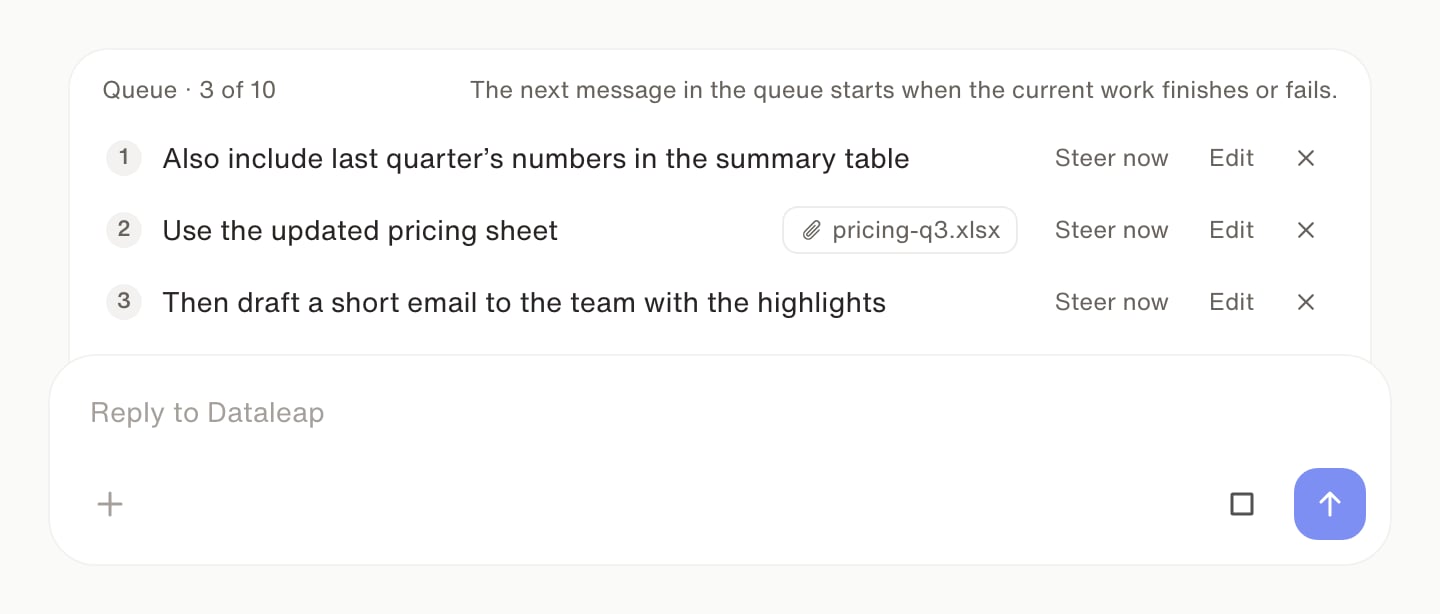
The queue sends one message at a time, and only when the current work finishes or fails. If a message can’t be sent, it stays at the top and holds the rest back until you retry or discard it.
The queue lives in your browser, for this chat. It survives a page reload and is shared between tabs in the same browser, but it doesn’t follow you to another browser or another device.
Improve it from real runs
Once the agent is running, feedback happens in the same chat: when a result isn’t what you wanted, tell the agent specifically what was wrong and what it should have been. You don’t need to dig through settings — just prompt it.Train it, don’t judge it. The first version might disappoint you — that’s normal. A new coworker needs time to learn your preferences; your agent is no different. Every correction you give is saved permanently and compounds on every run after: the agent that struggled last week can be excellent this week because of your input. And unlike your best team members, it never forgets a rule and has never once called in sick.
Check how a run went
Every run in the agent’s Runs list shows one of four statuses. Open a run to see its status spelled out next to Status.
A Degraded or Failed run comes with a one-line reason, such as A connection, permission or quota problem blocked the work. You see it in the Runs list and when you open the run.
Watch: Your first agent
See the build flow in action.
Shape agent behavior
Next: make the behavior predictable and safe.
Connect your tools
How connections work when Dataleap asks for them.