
Chat costs vs. run costs
Your costs come from two places, and they behave differently:- Chat costs — what you spend talking to Dataleap while building and refining an agent. High chat costs at the start are normal: that’s the building phase. Once the agent is finished, they drop to zero, unless it has an app people use.
- Run costs — what each execution consumes. This is the recurring cost, and it’s where the optimization levers below apply.
Budgets (admin)
The Budgets page in the admin panel shows the monthly org spend for the billing period — and sets the caps:- Weekly member budgets — hard weekly caps per person, resolved in order: user-specific budget → team budget → org default. The most specific one wins.
- Weekly team-agent budgets — a hard weekly budget shared across every team agent on a team, with an org default as fallback.
- Monthly org budgets (token and Dataleap usage) are monitoring views — passing them doesn’t block runs or stop agents; the weekly caps are the hard limits.
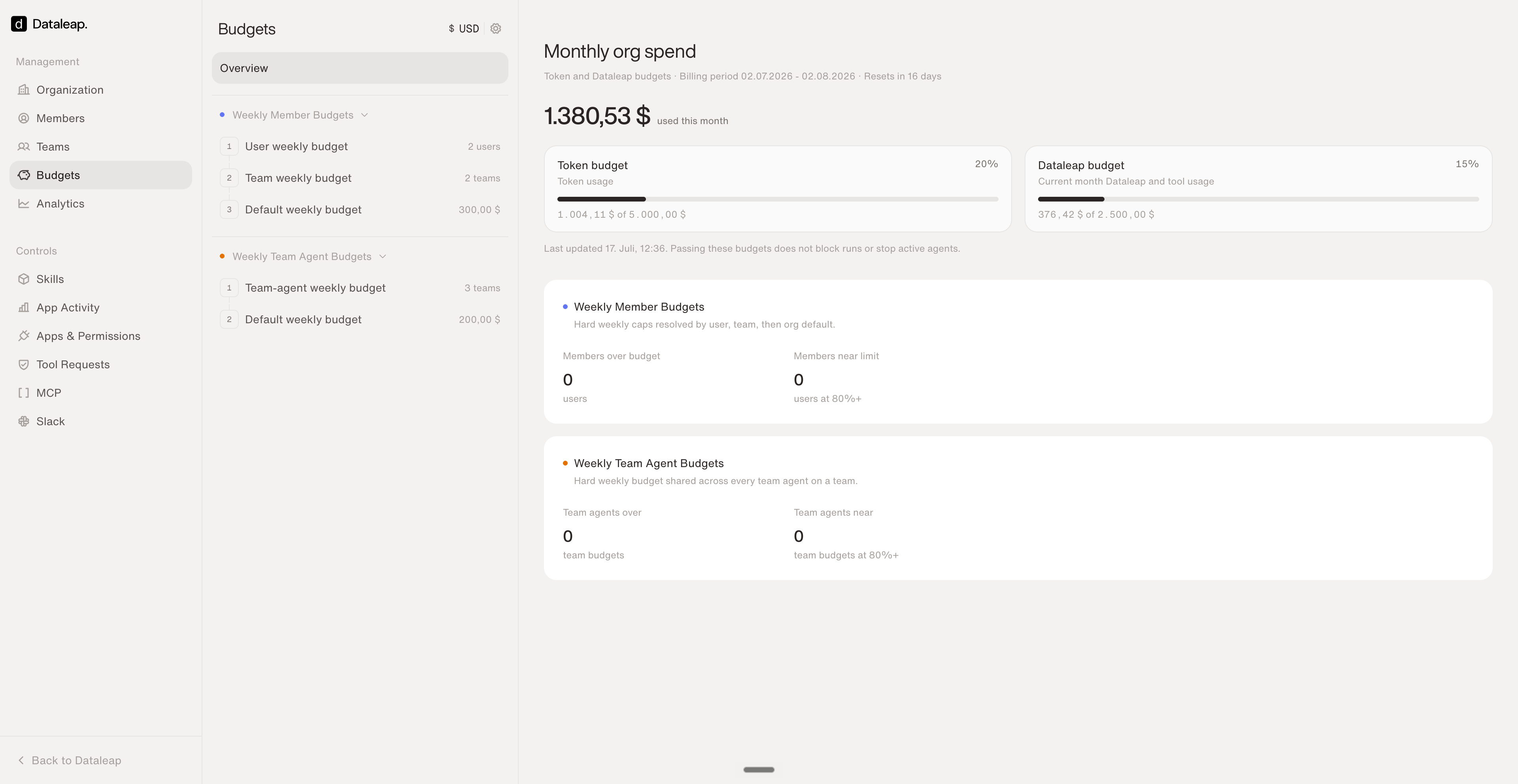
Budgets: monthly org spend on top, hard weekly caps for members and team agents below.
Analytics (admin)
The Analytics page answers “what’s actually happening”:- Overview — users, agents, active agents, weekly active users, and the billing period’s cost split (token, Dataleap, and tool usage).
- Adoption — how agent count and weekly active users develop over time.
- Per-agent list — every agent with its owner (person or team), active status, cost breakdown, and run count. Expand any agent for an AI-generated summary of what it does — no more guessing what “New Workflow” is.
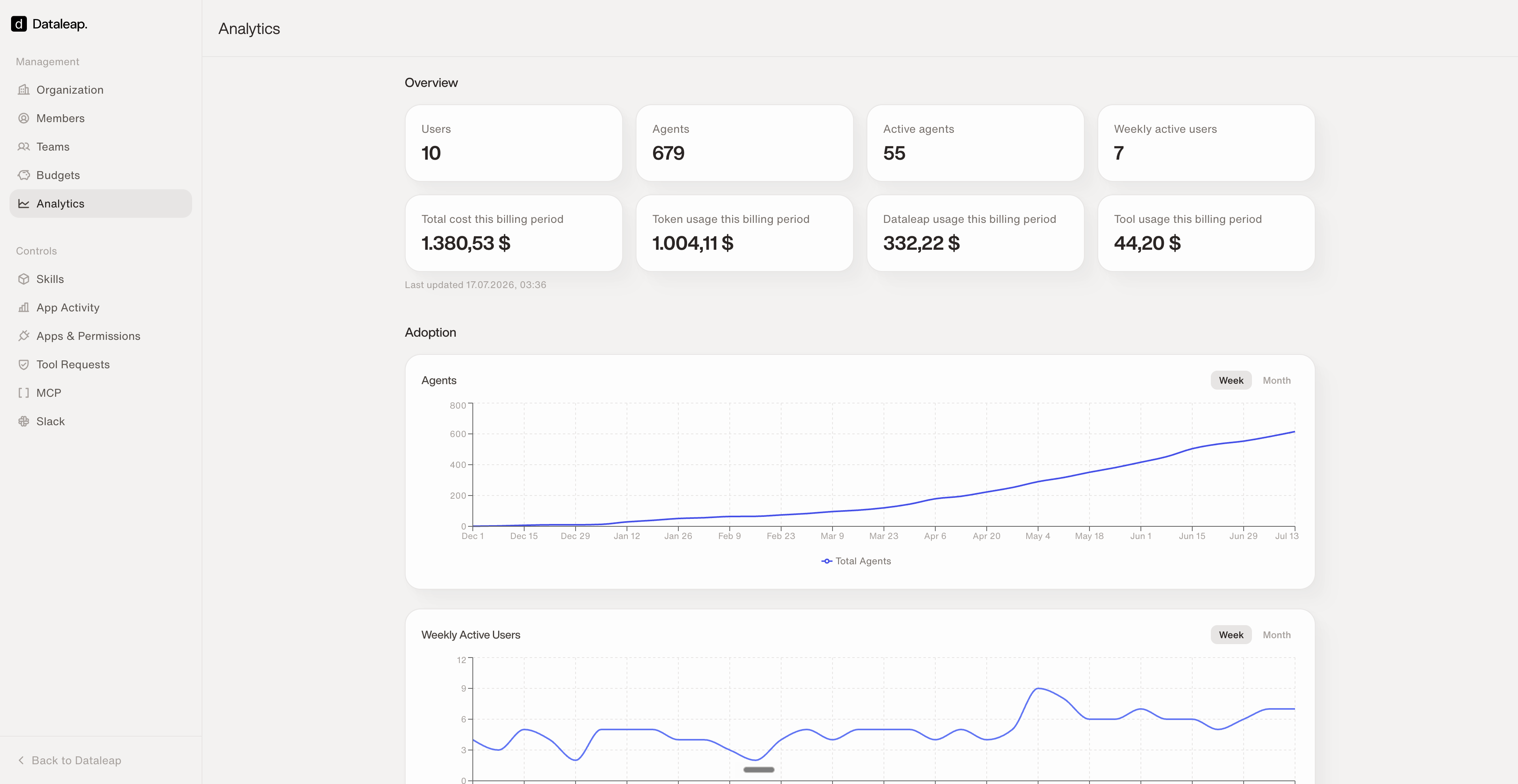
Analytics overview: adoption and spend for the whole workspace.
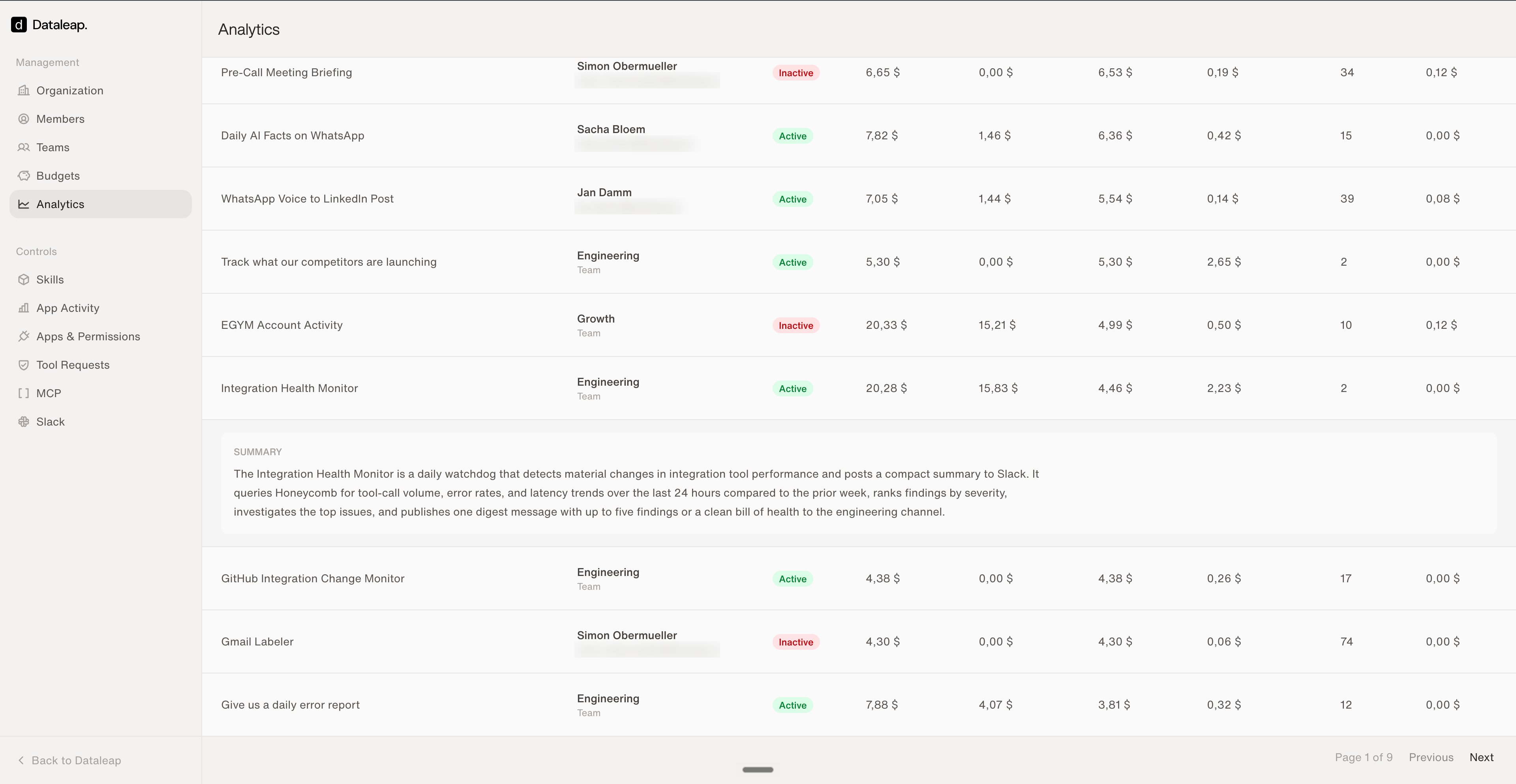
Every agent with owner, status, cost, runs — and an AI summary of what it does.
Export cost and usage (admin)
Your organization’s cost and usage figures can also leave Dataleap — into a finance tool, a data warehouse, a scheduled reporting job, or an agent that reports on spend. You get them with an API key from Workspace Settings > API Keys. The same kind of key can also feed Integration Activity into a security tool.API Keys is only available to admins in organizations on an Enterprise plan, including an Enterprise trial. Other members and plans don’t see it.
Create a key
1
Start a new key
Open Workspace Settings from your profile menu, choose API Keys under Controls, and click Create key.
2
Name it and choose its scopes
Give the key a Name that identifies its owner, such as the tool or team that will use it. Under Scopes, tick at least one. A key can carry both.
3
Set an expiry
Under Expiration, pick Never, 30 days, 90 days, 1 year, or Custom to choose a date. A key with an expiry stops working at the end of that day. A key set to Never keeps working until you revoke it.
4
Copy the key
Click Create key, then copy the key before you click Done. Dataleap shows it only once. If you lose it, create a new key and revoke the old one.

The Create an API key dialog.
What the key can read
With Cost and usage · Read, the key reads a daily report of your organization’s usage and cost, for up to 31 days at a time. You can see organization totals, or break the figures down by member or by team, and further by agent and by model. Each row shows token usage, charged tool calls, and the cost in your organization’s currency, split into model, Dataleap, and tool cost. The cost is consumption only: it leaves out platform fees, budgets, allowances, taxes, and invoice adjustments. With Integration activity · Read, the key reads the same tool calls you see on the Integration Activity page, up to 31 days at a time: who caused each call, which agent, integration, and tool were involved, when it ran, and whether it succeeded. Each event links back to that event on the Integration Activity page. The key never reads what a tool was sent or what it returned.Let an agent use the key
Every active key comes with ready-made agent instructions. They explain how to request the data for each of the key’s scopes and what each figure means. Paste them into an agent’s chat so it knows how to use the key. You can copy them in four places: under Setting up an agent? right after you create the key, with the copy icon on the key’s row, with Copy agent instructions in the row’s actions menu, or with Copy instructions in the key’s details. The instructions don’t contain your key — only a placeholder where the key goes. Don’t paste the key into the chat. When the agent needs it, it gives you a form to enter it in. The instructions can be copied only while the key is active.Keep track of keys and revoke them
The API Keys list shows each key’s name and the start of the key, its Scopes, who created it and when, when it was Last used, and its Status: Active, Expires soon (within seven days), Expired, or Revoked. Expired and revoked keys sit in a separate Inactive keys group below the active ones, which you can collapse. Click a key to open its details: when it expires, what each of its scopes allows, and its agent instructions. To revoke a key, choose Revoke in its row’s actions menu or at the bottom of its details, and confirm with Revoke key. Revoking is permanent, and any job that uses the key stops working. The key moves to Inactive keys as Revoked.Your own usage
Outside the admin panel, everyone sees their own picture: Usage in the sidebar shows your weekly credit usage and which agents consume it, and each agent’s Runs panel lists every execution with status, output, duration, and cost.Reduce the spend: the levers that matter
Integrations & permissions
Next: govern which tools agents can reach.
Triggers
The single biggest spend lever, explained.