
app.dataleap.ai/admin. Only Admins can open it. Members pick from what you allow.
The page has two jobs: what Basic, Pro, and Expert mean in your workspace, and which models members can choose.
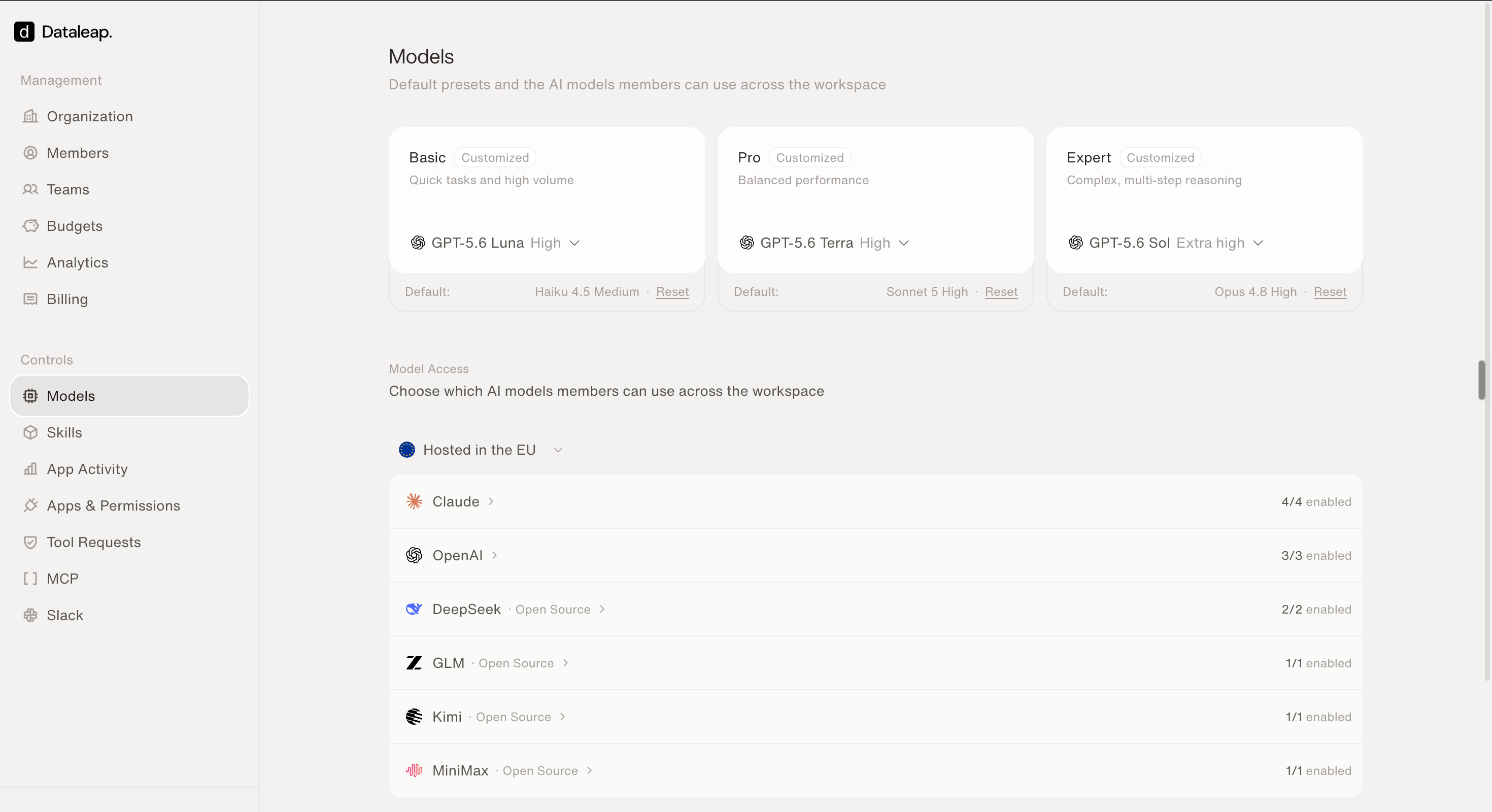
The Models page — presets on top, Model Access below.
Presets
Most people pick a preset, not a specific model.
When the Always use Dataleap’s recommended models setting below is off, you choose which model and Reasoning Level power each preset. The available levels depend on the model. When a model supports more than one, choose from Minimal, Low, Medium, High, Extra high, or Max. A Customized badge appears when a preset no longer uses Dataleap’s default. Use default puts it back.
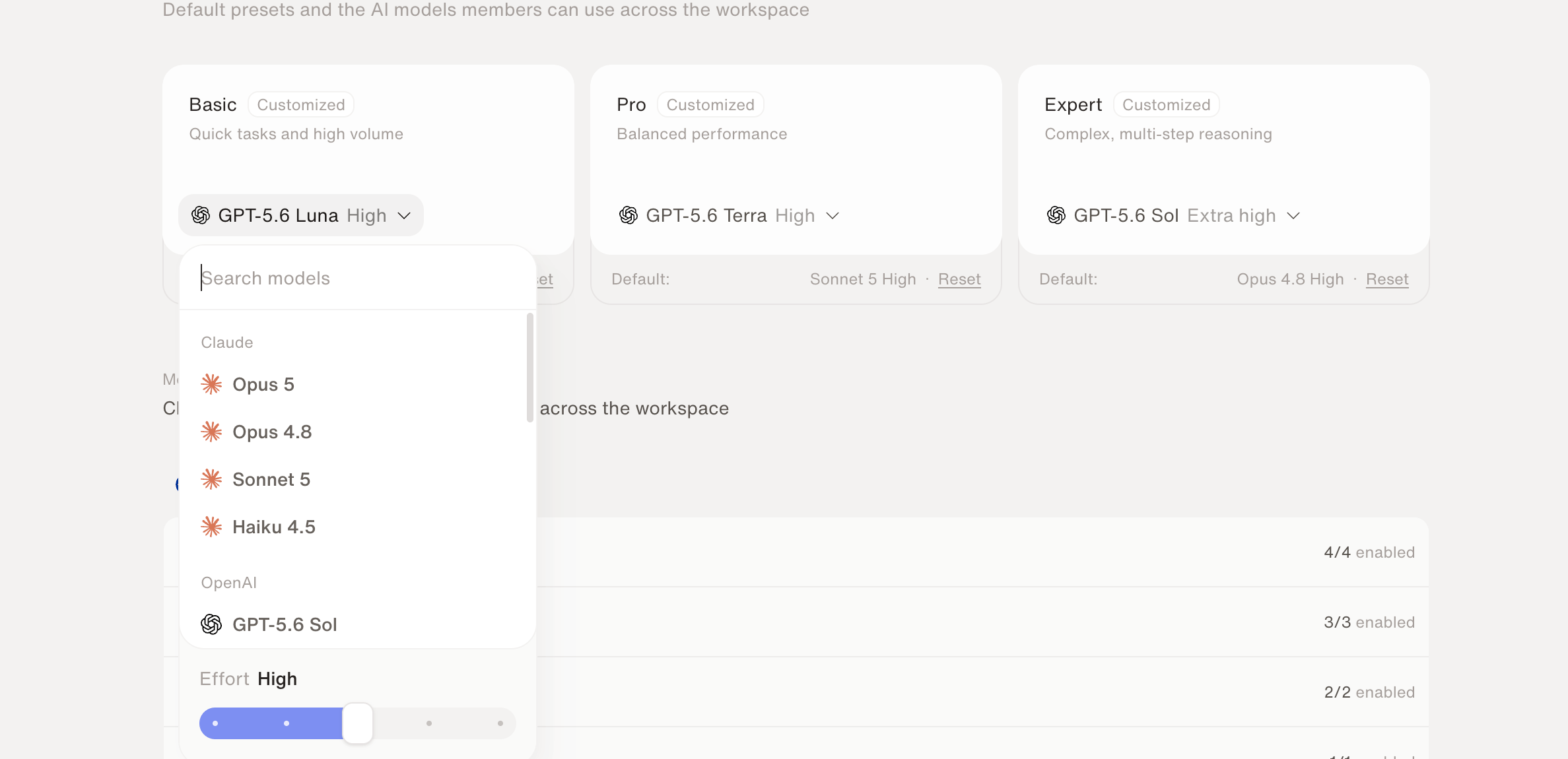
Pick the model and Reasoning Level behind a preset.
Always use Dataleap’s recommended models
Above the presets is a checkbox, Always use Dataleap’s recommended models. It decides whether Dataleap or you pick the models behind Basic, Pro, and Expert.
With the setting on, the preset pickers are locked. Hover over one to see why.
- Each preset uses the model and Reasoning Level Dataleap recommends. The preset pickers are locked. To choose your own models, turn the setting off.
- When Dataleap changes a recommendation, agents and sub-agents on that preset move to the new model, including archived agents. Your organization’s admins get an email listing what moved.
- Agents set to a specific model through Customize stay on it.
Model access
Model Access is the list of models members can use. Turn a model on or off with its switch. Enabled models appear when someone opens Customize in the model selector. Disabled models do not. If you disable a model agents already use, their future runs may be blocked until someone changes that agent’s model. Save from the bar at the bottom. Dataleap asks you to review first whenever you change a preset, or turn off a model that agents already use.When Dataleap retires a model
Sometimes Dataleap stops supporting a model, for example when its provider stops serving it. Agents on that model don’t break. On a set switch date, Dataleap moves them to a successor model for you.Before the switch date
- The model shows a Retiring badge in Model Access. Hover it to see the switch date and the successor.
- Nobody can newly pick the model. It disappears from Customize for new choices, you can’t turn it on if it’s off, and you can’t choose it for a preset.
- Agents already on the model keep running on it until the switch.
- The owners of affected agents and your organization’s admins get an email with the switch date and the successor. There’s nothing they need to do.
On the switch date
- Every agent and sub-agent on the model moves to the successor. An agent on a preset stays on that preset.
- Each one keeps its Reasoning Level if the successor has it. If not, it runs at the nearest level the successor supports.
- Presets that used the model move to the successor too.
- In Model Access, the successor is turned on and the retiring model is turned off.
If a provider stops serving a model without warning, Dataleap may switch agents right away and send the email afterwards.
Choose a different successor
When a retirement is scheduled, a Scheduled retirements section appears between the presets and Model Access. Each row shows the retiring model, its switch date, and how many agents use it.
Scheduled retirements: upcoming switches with a Successor menu, and switches that already happened.
What members see
In chat, Workflow, and a sub-agent’s Tools tab, people pick Basic, Pro, or Expert — or Customize to choose a specific enabled model and its Reasoning Level.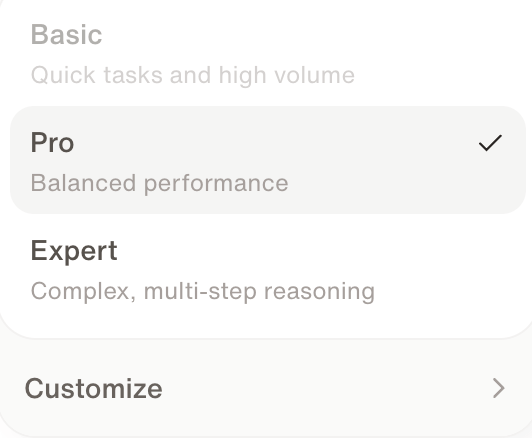
The model selector members see in chat.
Credits & usage
How preset choice fits into overall spend.
Users, teams & organization
Who can open Admin in the first place.